



Executive Summary
Filing your personal income tax return online in Canada has become the standard method, with over 25 million returns filed electronically each year through the Canada Revenue Agency (CRA). Yet many Canadian taxpayers remain confused about the different filing options, the distinction between NETFILE and EFILE, how to access CRA My Account, and the actual step-by-step process to submit a return online.
The result: Some taxpayers waste time filing by paper (taking 8 weeks for refunds instead of 8 business days), fail to use Auto-Fill My Return (missing the chance to auto-populate income information), or struggle with CRA My Account registration.
This guide explains every method for filing your personal tax return online in Canada, walks you through the complete NETFILE filing process step-by-step, clarifies NETFILE vs. EFILE differences, and shows you how to set up and use CRA My Account to track your refund, update personal information, and access your tax information in real-time.
For Canadian taxpayers, understanding online filing options is the difference between a quick refund in 8 business days and waiting 8 weeks—or between claiming every eligible deduction and missing tax credits.
Part 1: Understanding Canadian Personal Tax Filing Options
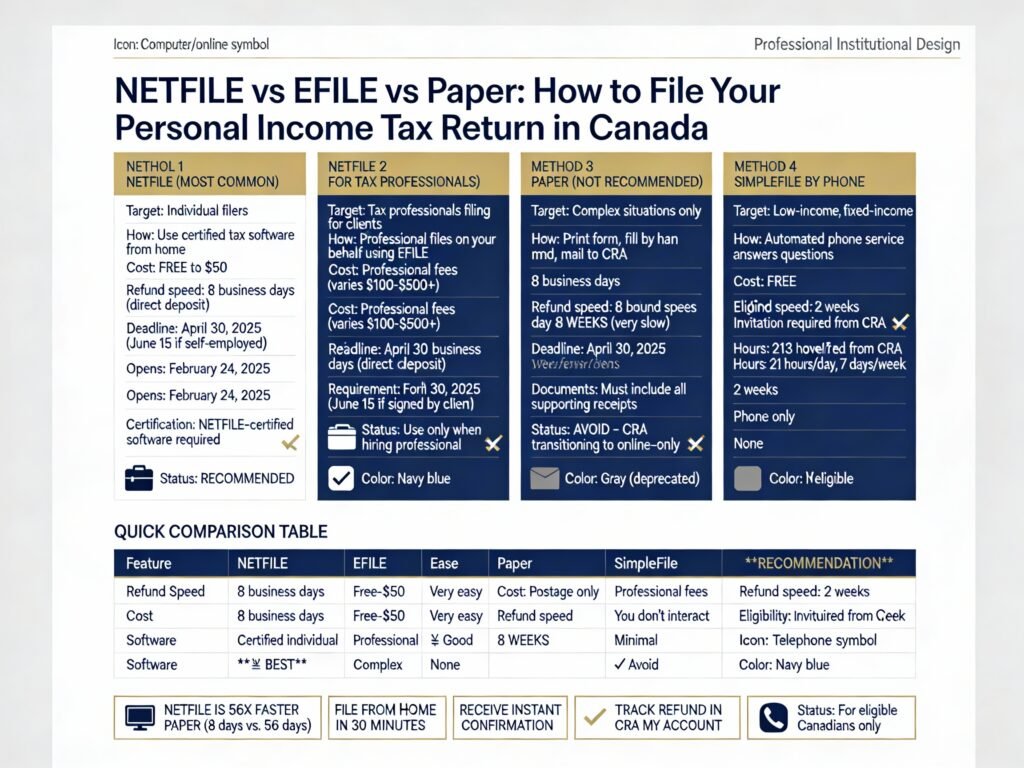
Option 1: NETFILE (Most Common—For Individuals)
What It Is:
NETFILE is an electronic tax-filing service that lets you file your personal income tax return directly to the CRA using certified tax software from your home computer or online.
Key Facts:
- Available starting mid-February each year (typically February 24, 2025 for 2024 tax year)
- Deadline: April 30, 2025 (June 15, 2025, if you or spouse is self-employed)
- NETFILE-certified software required
- You receive instant confirmation of receipt
- Refunds arrive in as few as 8 business days (vs. 8 weeks for paper)
Who Can Use NETFILE:
- Any individual resident of Canada
- Social Insurance Number (SIN) starting with 1-9
- (Newcomers with SIN starting with 0 can also use NETFILE)
Who CANNOT Use NETFILE:
- Deceased taxpayers
- Bankruptcy returns
- Filing returns for prior years (only 2017-2024 allowed)
- Non-residents of Canada filing Schedule A or B (with some exceptions)
- Certain complex situations (farming partnerships, registered disability savings, etc.)
Transmission Details:
- Your return is sent directly to the CRA through the NETFILE service
- Federal return sent to CRA (Ottawa)
- Provincial/territorial return sent based on province of residence
- Quebec: Sent to Revenu Québec (separate system)
- All other provinces: Sent to CRA through NETFILE
Cost:
- FREE if using CRA-listed free software (many available)
- Paid options available ($20-$50 depending on software)
- Cannot charge more than $30 for basic individual returns
Option 2: EFILE (For Tax Professionals Only)
What It Is:
EFILE is an electronic tax-filing service designed for tax professionals, accountants, and enrolled agents to file personal income tax returns on behalf of their clients.
Key Differences from NETFILE:
- Available to professionals/firms only
- Must register with CRA and be approved
- Can file clients’ 2017-2024 tax returns
- Can file amended returns (ReFILE) for 2021-2024 tax years
- Requires Form T183 signed by client
When You’d Encounter EFILE:
- When you hire a tax professional to prepare and file your return
- Professional uses EFILE on your behalf (you don’t interact with EFILE directly)
- You must authorize them in writing
Option 3: Paper Filing (Rarely Used Now)
When To Use:
- Cannot use NETFILE (due to complexity or restrictions)
- Prefer not to use online services
- Don’t have internet access
Downsides:
- Takes 8 weeks to receive refund (vs. 8 business days online)
- Must include all supporting documents (T4s, receipts, slips)
- Higher error risk (no software validation)
- More cumbersome process
Increasingly Not Recommended:
As of 2025, CRA is transitioning to online-only service for many functions, making paper filing less practical.
Option 4: SimpleFile by Phone (Automated Phone Service)
Who Qualifies:
- Low-income or fixed-income individuals
- Income unchanged year-to-year
- Simple tax situation
How It Works:
- CRA sends invitation letter (typically mid-February)
- Call automated phone service
- Answer questions about income, deductions, credits
- Receive refund within 2 weeks
Availability:
- 21 hours per day (6 AM to 3 AM Eastern time)
- 7 days a week during tax season
- Only for eligible taxpayers (invitation required)
Part 2: NETFILE vs. EFILE—Key Differences Explained
| Feature | NETFILE | EFILE |
|---|---|---|
| User Type | Individual filers | Tax professionals/firms only |
| Who Files | You file your own return | Professional files on your behalf |
| Software Required | NETFILE-certified (individual use) | NETFILE-certified (professional version) |
| Cost | FREE to $50 | Professional fees vary |
| Registration | Auto-registered if you have SIN | Must register and be approved by CRA |
| Forms Needed | None (self-service) | Form T183 signed by client |
| Available Years | 2017-2024 | 2017-2024 (initial); 2021-2024 (amended) |
| Refund Speed | 8 business days (direct deposit) | Same as NETFILE |
| You Never Touch | One click submit to CRA | Professional submits; you don’t interact |
| Support | Software provider support | Tax professional support |
Part 3: Step-by-Step Guide to Filing Taxes Online via NETFILE
Step 1: Prepare Your Documents (Before Filing)
Gather Income Information Slips:
- T4: Statement of Remuneration Paid (employment income)
- T4A: Statement of Pension, Retirement, Annuity Income
- T5: Statement of Investment Income
- T3: Statement of Trust Income Allocations
- T2202: Tuition and Education Credits
- Other slips (disability, benefits, etc.)
Gather Deduction and Credit Documentation:
- RRSP contribution receipts
- TFSA contribution records
- Medical expenses documentation
- Childcare expense receipts
- Donation receipts
- Tuition statements
- Rental property income/expense records
Obtain Your Notice of Assessment:
- From previous year’s tax return
- Needed for Auto-Fill My Return feature
- Shows RRSP contribution room, TFSA room, etc.
Gather Personal Information:
- Social Insurance Number (SIN)
- Date of birth
- Current address
- Marital status
- Spouse’s SIN (if applicable)
- Banking information (for direct deposit)
Step 2: Register for CRA My Account (If Not Already Done)
Why Register:
- Access Auto-Fill My Return feature
- Monitor refund status
- Update personal information
- View RRSP/TFSA contribution limits
- Apply for benefits online
- Authorize tax professionals to access your account (as of July 15, 2025, this is required)
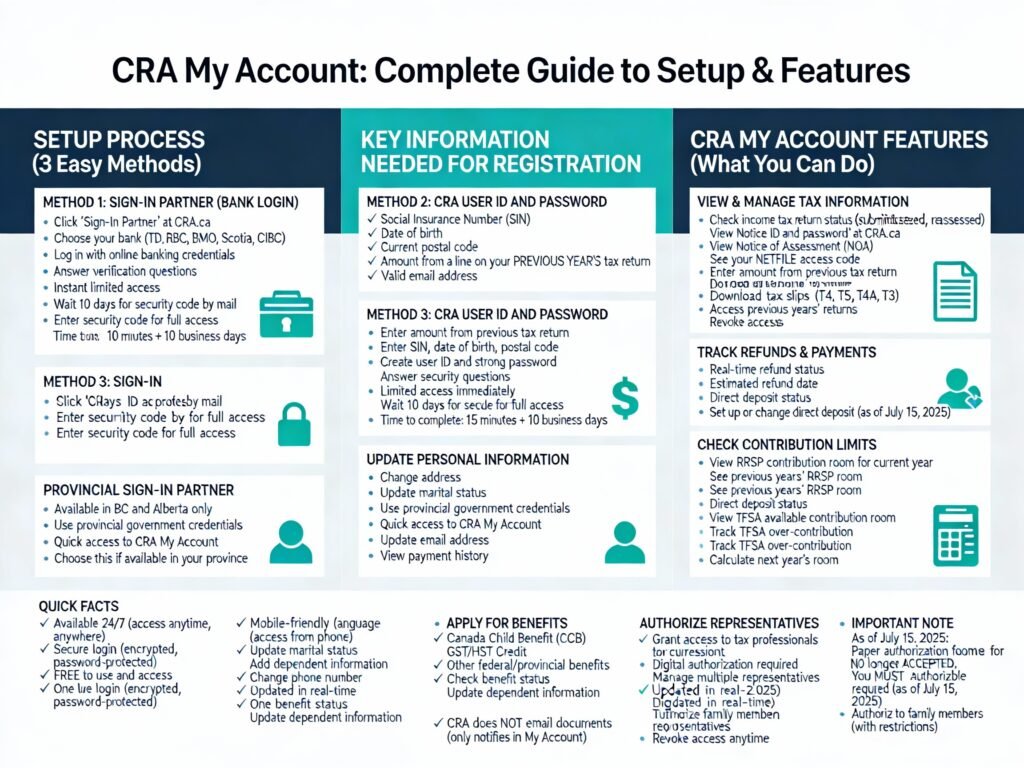
How to Register—Option A: Sign-In Partner (Bank Login):
- Visit https://www.canada.ca/en/revenue-agency.html
- Click “CRA My Account”
- Select “Sign-In Partner”
- Choose your bank (TD, RBC, BMO, Scotia, CIBC, etc.)
- Log in with your online banking credentials
- Answer verification questions
- You now have limited access
- Receive CRA security code by mail within 10 business days
- Enter security code to unlock full access
How to Register—Option B: CRA User ID and Password:
- Visit https://www.canada.ca/en/revenue-agency.html
- Click “CRA My Account”
- Select “CRA user ID and password”
- Enter your SIN
- Enter your date of birth
- Enter your current postal code
- Enter an amount from a line on your recent tax return (from past 2 years)
- Create a user ID (letters and numbers)
- Create a strong password
- Create security questions
- You now have limited access
- Receive CRA security code by mail within 10 business days
- Enter security code to unlock full access
What Information You’ll Need:
- Social Insurance Number (SIN)
- Date of birth
- Current postal code
- An amount from a line on your previous year’s tax return
Step 3: Choose NETFILE-Certified Tax Software
Approved Software Options (2025-2026):
- TurboTax (most used—25+ million returns filed)
- CloudTax
- GenuTax
- UFile
- StudioTax (free, open-source)
- Many others listed on CRA website
What to Look For:
- “NETFILE-certified” label
- Covers your tax situation (simple, business, rentals, investments, etc.)
- Reviews and ratings
- Customer support availability
- Quebec certification (if you live in Quebec—must be Revenu Québec certified too)
Cost Options:
- Free software (for simple situations, low income)
- $20-$50 for standard individual returns
- $50-$150 for more complex situations
- Subscription model (some charge annually)
Recommendation:
Most individuals benefit from paid software ($30-50) that handles deductions auto-matically and includes phone support.
Step 4: Create Your Profile in Tax Software
In Your Chosen Tax Software:
- Download or access the software (depends on whether desktop or online)
- Create an account or sign in
- Start a new tax return
- Select tax year (2024, for 2025 filing)
- Enter your personal information:
- Name
- SIN
- Date of birth
- Address
- Marital status
- Spouse information (if applicable)
- Preferred language
- Home phone number
Step 5: Use Auto-Fill My Return (If Eligible)
What Is Auto-Fill My Return:
A feature in certified tax software that automatically populates your tax return with information the CRA already has on file (your T4, T5, T3 slips, etc.).
How to Use Auto-Fill:
- In your tax software, locate “Auto-Fill My Return” option
- Software will prompt you to log in with your CRA My Account credentials
- Grant permission for software to access your CRA information
- Software automatically fills in:
- T4 employment income
- T5 investment income
- T3 trust income
- CPP/EI information
- Previous RRSP/TFSA contributions
- Other information CRA has on file
Important Note:
You MUST verify that Auto-Fill amounts match your actual documents. Tax slips are sometimes missing or incorrect, and Auto-Fill only brings in what CRA received.
Step 6: Enter Income, Deductions, and Credits
If Auto-Fill Not Used, Manually Enter:
Income Section:
- Employment income (from T4)
- Investment income (from T5)
- Self-employment income (if applicable)
- Pension income (from T4A)
- Rental income
- Taxable capital gains
- Government benefits received
Deduction and Credits Section:
- RRSP contributions (software calculates room based on previous year)
- Tuition and education credits
- Medical expenses
- Childcare expenses
- Donations
- Moving expenses
- Student loan interest
- Eligible dependent amounts
- Caregiver amounts
Tax Credits Section:
- Federal and provincial credits (software calculates automatically)
- GST/HST credit eligibility
- Canada Child Benefit
- Climate action incentive
Step 7: Review Your Return
Before Submitting:
- Review all information for accuracy
- Verify income amounts match your slips
- Verify you’ve claimed all eligible deductions
- Verify personal information (address, SIN, marital status)
- Check that software calculated your tax correctly
- Confirm refund amount or balance owing
Common Items to Double-Check:
- Spelling of name and address
- Marital status and spouse information
- RRSP room used (software should limit to available room)
- Deductions are within allowed amounts
- Medical expenses threshold met (lowest of 15% net income or $2,760 in 2024)
Step 8: Submit via NETFILE
Final Submission Steps:
- Click “Submit” or “File” (terminology varies by software)
- Software displays NETFILE privacy notice—review and accept
- Software connects to CRA NETFILE server
- Return is encrypted and transmitted to CRA
- CRA receives and processes your return
- You receive instant confirmation with:
- CRA transmission number (IMPORTANT—keep this for your records)
- Date and time of submission
- Confirmation that CRA received your return
Timing Matters:
- Submit before April 30, 2025 (or June 15 if self-employed)
- Earlier submission = earlier refund processing
- NETFILE opens mid-February (February 24, 2025)
Step 9: Track Your Refund Status
Via CRA My Account:
- Log in to CRA My Account
- Navigate to “Tax returns” or “Refund status”
- See your return status:
- Submitted: Your return received but not yet processed
- Assessed: CRA has reviewed and approved your return
- Reassessed: Changes made to your return (usually by CRA)
Via Phone:
- Call CRA at 1-800-959-8281
- Provide SIN and date of birth
- Agent can tell you refund status
- Have your transmission number handy
Expected Timeline:
- Direct deposit: 8 business days to 2 weeks
- Cheque by mail: 4 weeks
- If CRA needs documents: May take 8 weeks
Part 4: NETFILE Access Codes (Optional But Helpful)
What Is a NETFILE Access Code?
Definition:
A unique 8-character code provided by CRA that you can use when contacting the CRA about your return.
Availability:
- Appears on your Notice of Assessment (mailed after CRA assesses your return)
- Optional to use (not mandatory for filing)
- Makes it easier to verify yourself to CRA if you need to call
How to Get It:
- Appears on Notice of Assessment (NOA) from previous year
- Available in CRA My Account
- Can request from CRA if needed
When To Use:
- Calling CRA with questions about your return
- Contacting tax professional (if authorized)
Part 5: CRA My Account Features and Benefits
What Is CRA My Account?
Definition:
A secure online portal provided by CRA that allows you to manage your personal tax and benefit information 24/7.
Key Features of CRA My Account
- View Your Tax Returns
- See all filed returns
- View returns from prior years
- Monitor return status (submitted, assessed, reassessed)
- Check Your Refund Status
- Real-time refund tracking
- Estimated refund date
- Direct deposit status
- View Your Notice of Assessment
- Complete tax assessment
- Calculate next year’s RRSP room
- Identify TFSA available room
- See NETFILE access code
- Update Personal Information
- Change address
- Update marital status
- Add dependent information
- Change phone number
- Update email
- Manage Direct Deposit
- Set up direct deposit (fastest refunds)
- Change bank account for deposits
- View direct deposit status
- View Tax Slips
- Download T4, T4A, T5, T3, etc.
- Print for your records
- Use for filing or record-keeping
- Apply for Benefits
- Canada Child Benefit (CCB)
- GST/HST Credit
- Other federal/provincial benefits
- Authorize Representatives
- Grant access to tax professionals
- New as of July 15, 2025: Digital authorization required (no paper forms)
- Grant access to family members (with restrictions)
How to Login to CRA My Account
Method 1: Sign-In Partner (Bank Credentials)
- Go to https://www.canada.ca/en/revenue-agency.html
- Click “CRA My Account”
- Select “Sign-In Partner”
- Choose your bank from the list
- Log in with your online banking username/password
- You’re now logged in
Method 2: CRA User ID and Password
- Go to https://www.canada.ca/en/revenue-agency.html
- Click “CRA My Account”
- Select “CRA user ID and password”
- Enter your user ID (created during registration)
- Enter your password
- You’re now logged in
Method 3: GCKey or Sign-In Partner (Government of Canada)
- Some provinces offer their own Sign-In Partner (BC, Alberta)
- Use provincial credentials to access CRA My Account
Troubleshooting Common CRA My Account Issues
“I Forgot My Password”
- Use “Forgot your password?” link
- Follow email verification
- Create new password
- Try again
“I Can’t Access My Account”
- Verify you’re using correct login method (Sign-In Partner vs. CRA ID)
- Check that you completed registration (including CRA security code step)
- Wait 24 hours if just registered
- Call CRA: 1-800-959-8281
“I Don’t Have a CRA Security Code Yet”
- Takes 10 business days to arrive by mail
- You’ll have limited access until you enter it
- Can complete registration without it initially
Part 6: Key Tax Dates for 2025 (2024 Tax Year)
| Date | Event |
|---|---|
| February 24, 2025 | NETFILE opens for electronic filing |
| Early March, 2025 | Most T4, T5, T3 slips received by taxpayers |
| April 30, 2025 | Deadline for most individuals to file |
| June 15, 2025 | Deadline if self-employed or spouse self-employed |
| May 15, 2025 | Estimated refund deadline (if no audit) |
| January 30, 2026 | NETFILE closes for filing 2024 returns |
Conclusion: Online Filing is Your Best Option
Filing your personal income tax return online via NETFILE offers clear advantages over paper filing:
- Speed: 8 business days for refunds vs. 8 weeks for paper
- Convenience: File from home, anytime
- Accuracy: Software validates your entries
- Confirmation: Instant receipt confirmation
- Tracking: Monitor refund status in real-time via CRA My Account
- Cost: Often FREE (for simple returns)
- Security: Encrypted submission directly to CRA
Combined with CRA My Account, you have complete control over your tax affairs, can update information instantly, and can authorize professionals to help you—all without visiting an office or mailing documents.
For 2025, take 30 minutes to register for CRA My Account, choose NETFILE-certified software, and file online. Your refund will arrive in less than 2 weeks, and you’ll spend no time worrying about your taxes.
Article created for BOMCAS Canada. For personal income tax filing help and tax return preparation, contact info@bomcas.ca







 View Our Location





 181 Meadowview Bay, Sherwood Park, AB T8H 1P7, Canada (Online Clients Only)